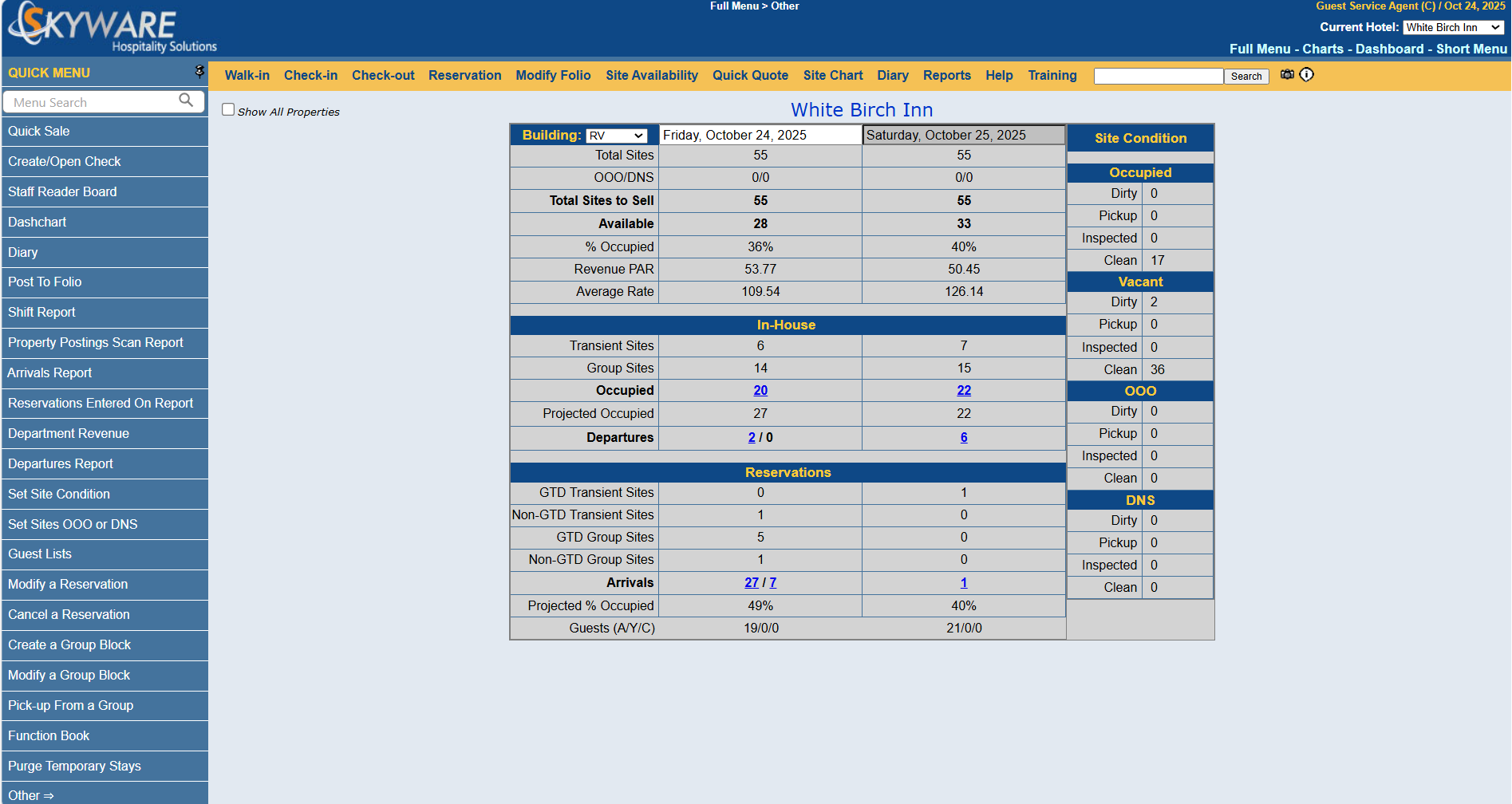
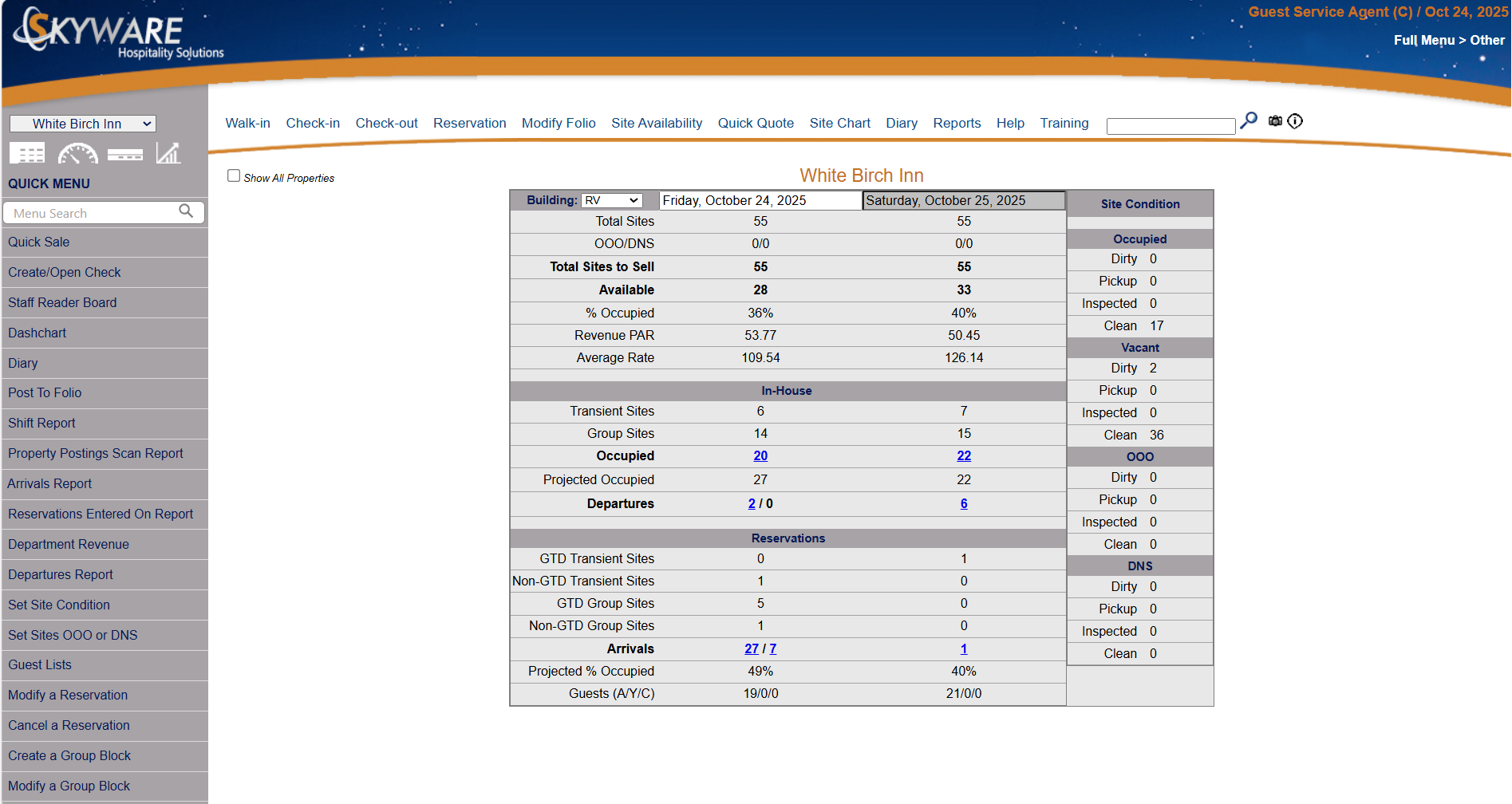
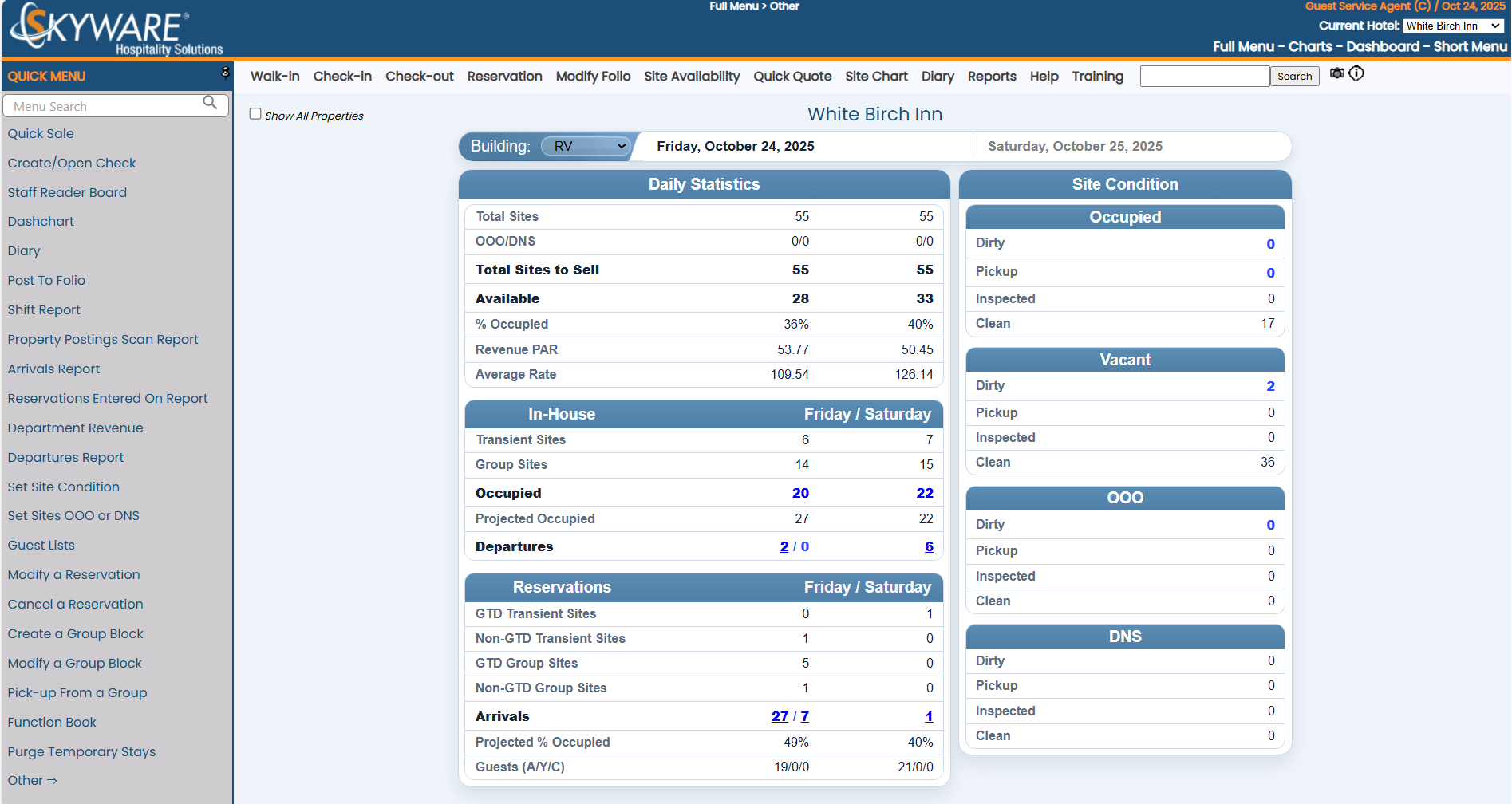
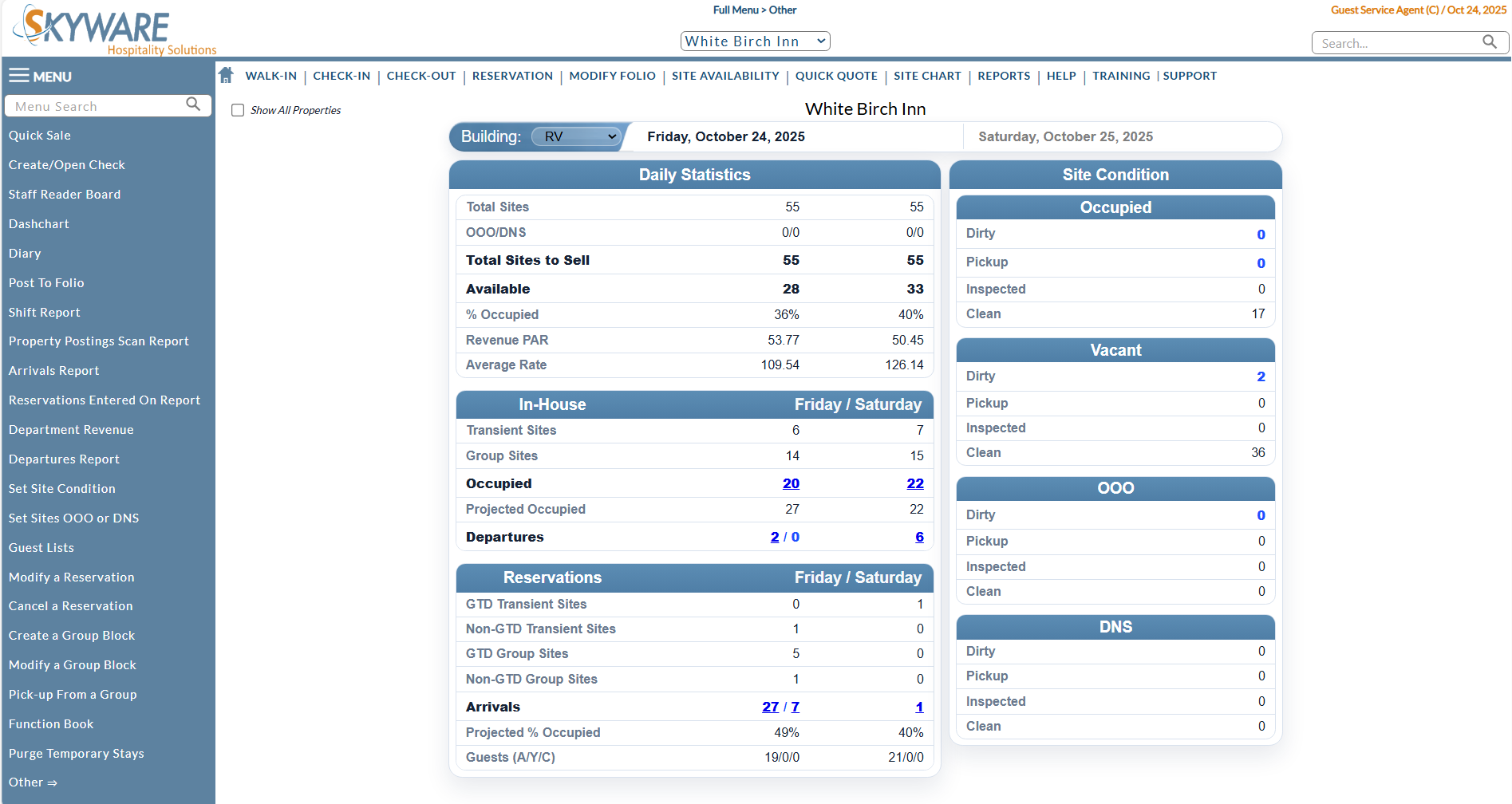
Skyware has multiple Color Theme display options (aka "Skins"), which may be selected from for your individual User preference. These include the "Classic" style (pale blue background), and several "Modern" themes, Modern Curve (white background), Modern Straight (pale blue background), Modern Light (white background) and the most recent, Modern Dark (dark background, useful for using Skyware in bright environments) for displaying Skyware. Choose your Color Theme depending on what is easiest for you to use. Whilst Color Theme is originally selected on the Property Definition screen for the Property as a whole, every User can make their own choice.
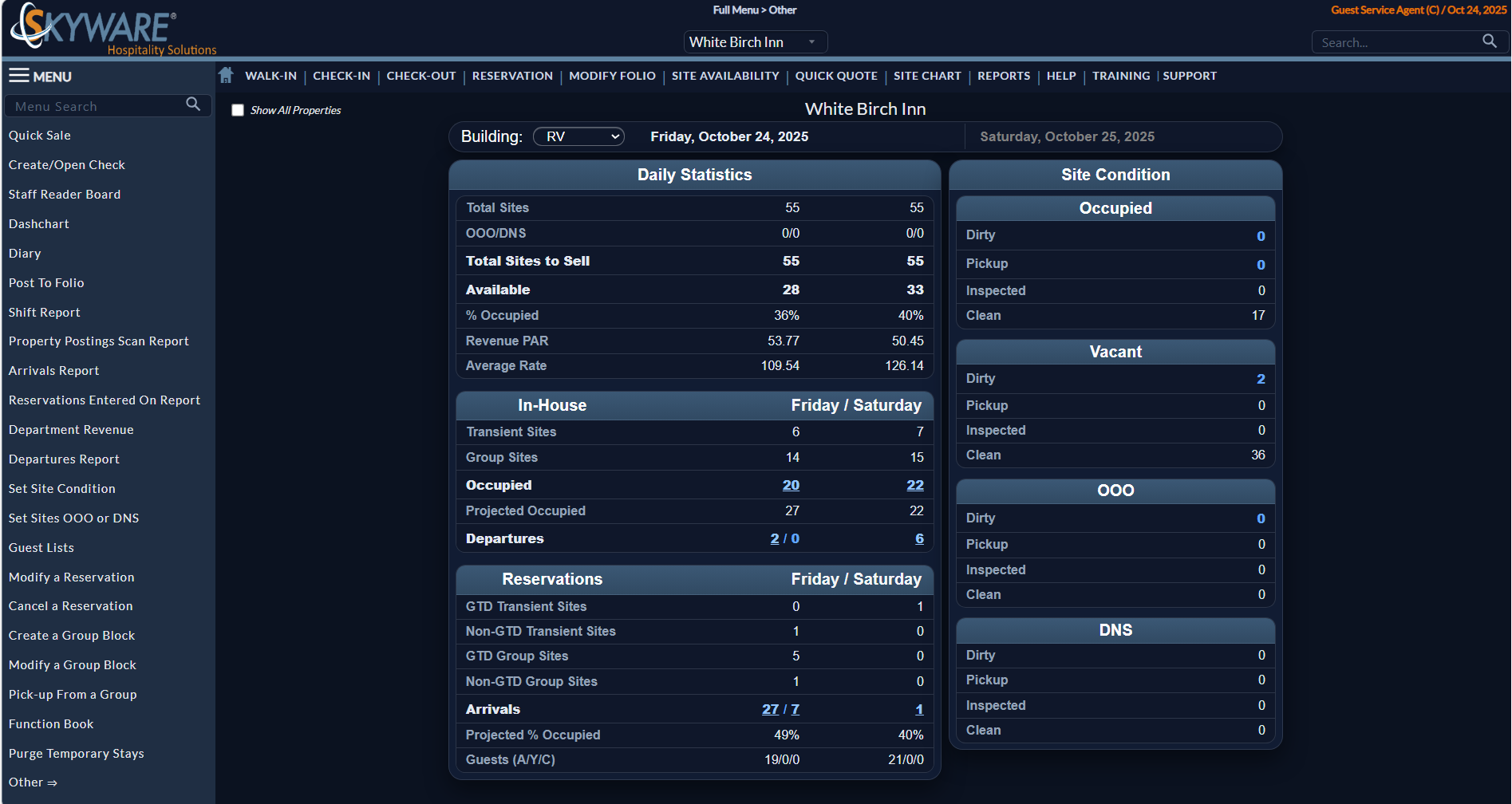
The Dashboard screen (the most common landing page for Users after logging on) is shown in the various different themes available.
Classic: Pale blue background, orange Action Bar, darker blue Quick Menu, tables and Dashboard shown in gray.
Modern Curve: White background, white with curved orange line Action Bar, dark gray Quick Menu, tables and Dashboard shown in gray.
Modern Straight: Pale blue background, paler blue Action Bar, pale gray Quick Menu, tables and Dashboard shown in white.
Modern Light: White background, white Action Bar, blue Quick Menu, tables and Dashboard shown in white.
Modern Dark: Black background, very dark gray Action Bar, dark gray Quick Menu, tables and Dashboard.
 To change the Color Theme selection:
To change the Color Theme for an individual User:
The Color Theme for each User is selected at initial account generation (on the Users screen) but may be altered as wished for by an individual User at any point, by using the Color Theme drop down field to select the different option.
Open the Users Maintenance screen:
Click the icon on the left for the Full Menu.
 OR
OR 
This will display the Full menu in a tabular form, with four sections, Registration, Status, Cashier and Other.
 OR
OR 
Select Other => from the Other section. This will display the Other Front Desk Tasks Menu, which has four sections, Other List 1, Other List 2, Documents and Web.
 OR
OR 
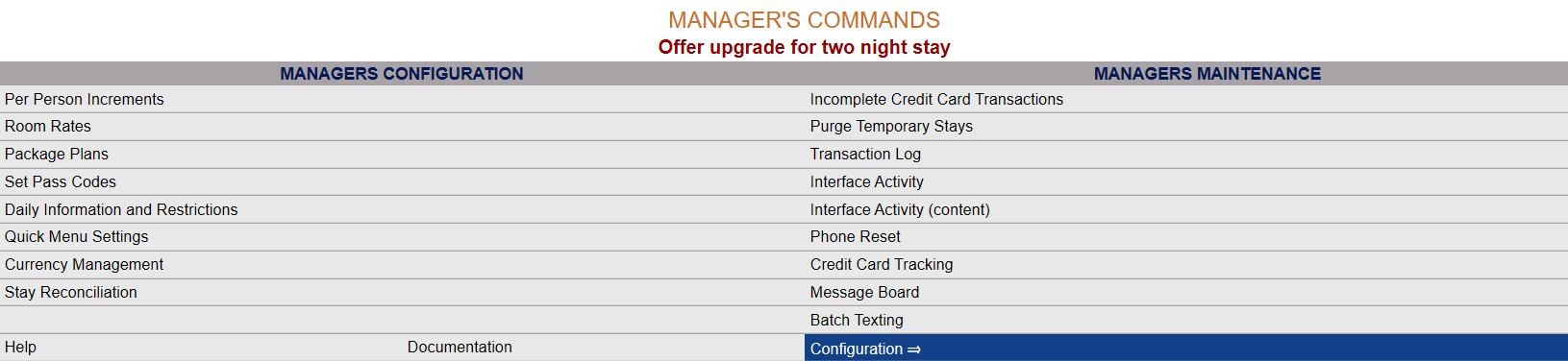
Select Managers Screen => from the Other List 2 section. This will display the Managers Commands screen. The Managers Commands screen has two sections, Managers Configuration and Managers Configuration.
 OR
OR 
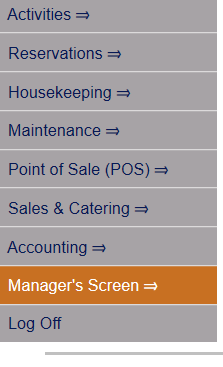
OR: Select Manager's Screen => from the Quick Menu on the left side of the screen, to be taken directly to the Managers Commands menu.
 OR
OR 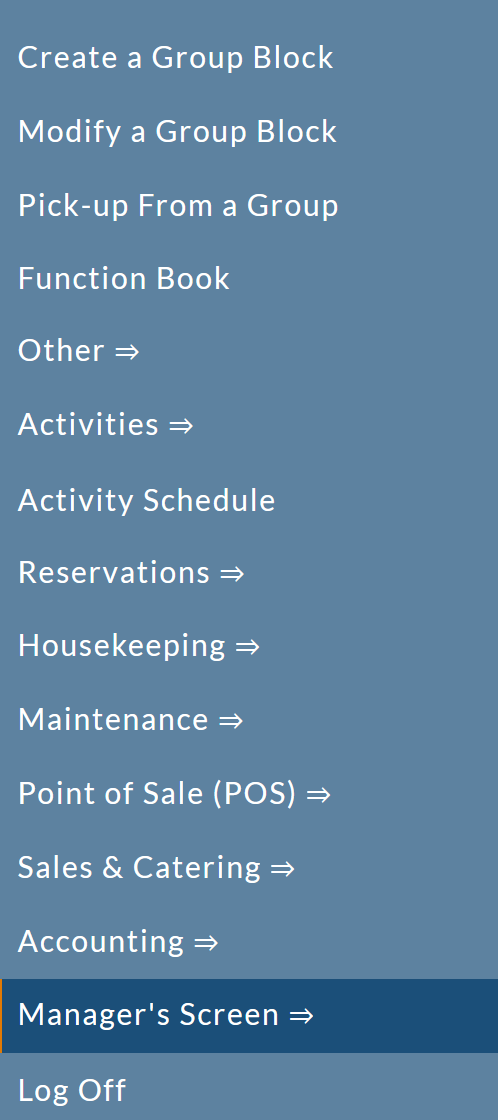
The Manager's Command screen menu has two sections, Manager's Configuration and Manager's Maintenance.
 OR
OR
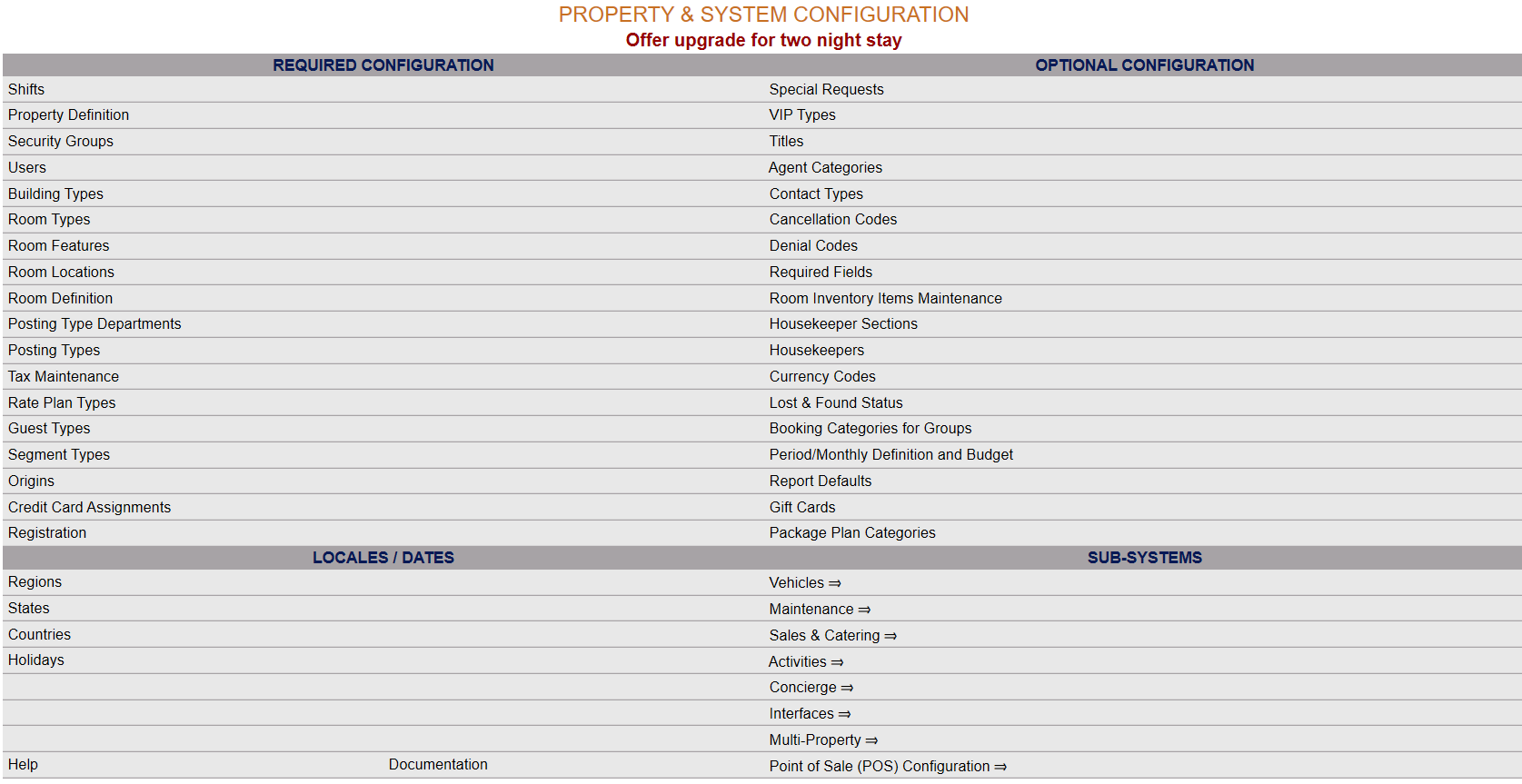
Select Configuration => from the Managers Configuration section to be taken to the Property and System Configuration screen. The list of property configuration options are divided into four sections, which are Required Configuration, Optional Configuration, Locales/Dates and Sub-Systems.
 OR
OR 
(Alternately, you may also be able to select Configuration => directly from the Quick Menu, if the menu has been set up to include the Configuration option).
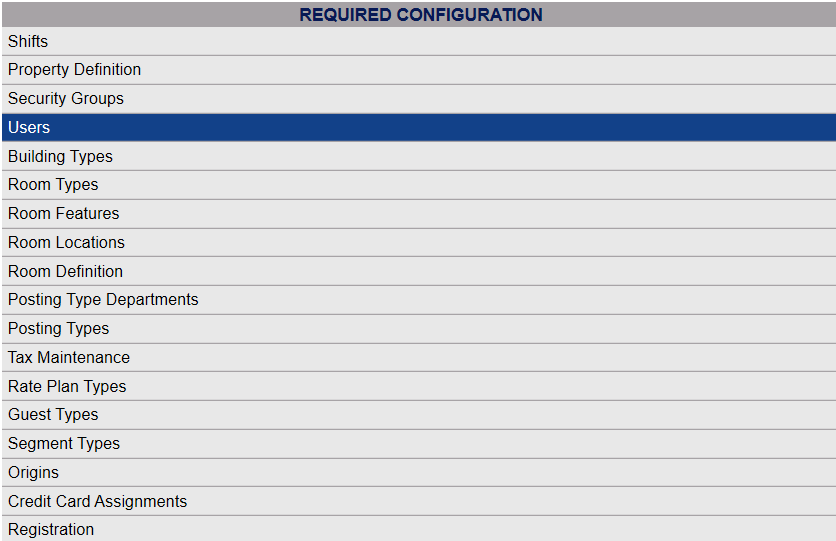
Select Users from the Required Configuration section.
 OR
OR 
On the Users screen, the currently logged in User's information will be displayed on the right side. (If this is NOT the User profile to be adjusted, select the correct one from the list on the left).
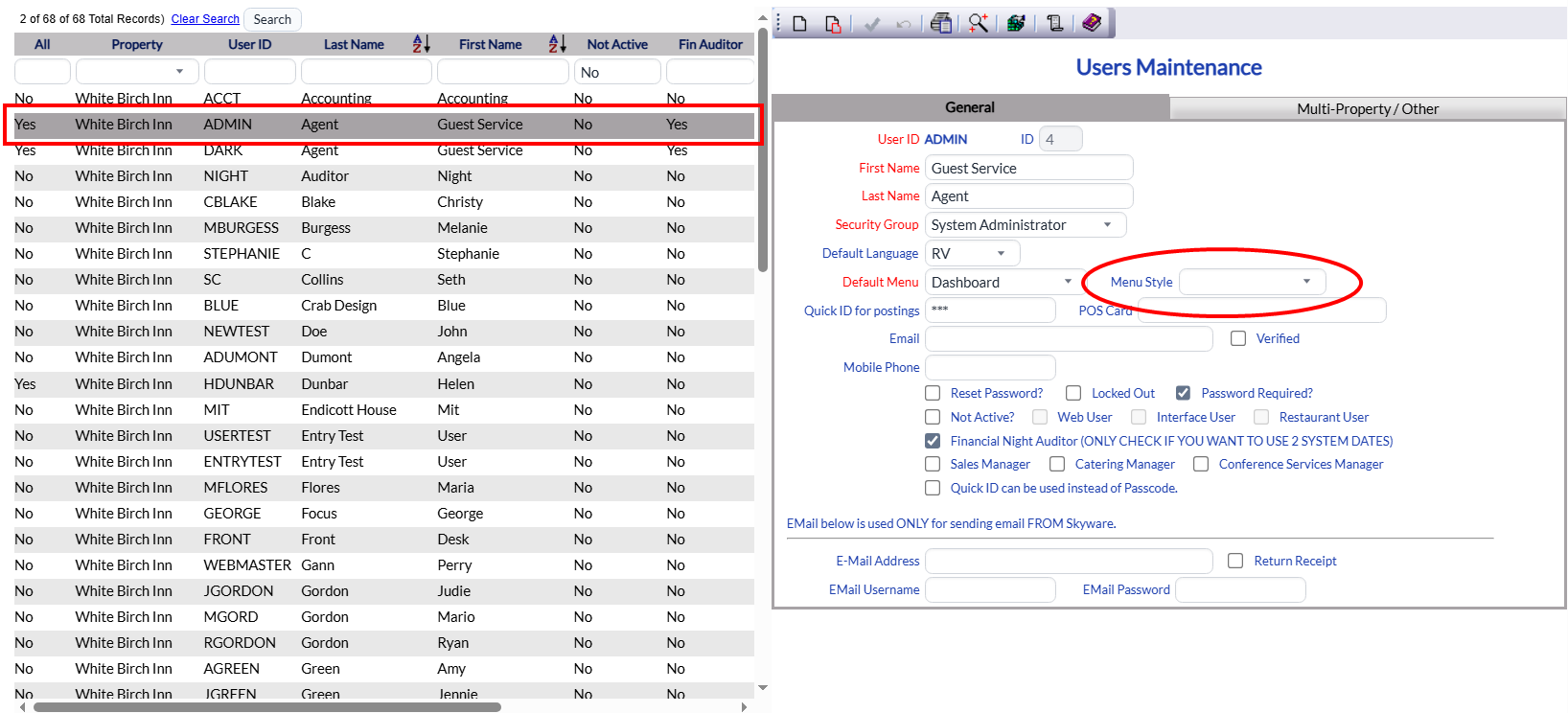
Select the preferred Color Theme option from the drop-down list and save the selection. Once any new screen in Skyware is opened, it will be displayed in the newly selected color theme for the User.
Note: As Color Theme is NOT a required field, it may be left blank. If so, the selected Color Theme for the User will be that which was selected for the Property as a whole.
To change the Color Theme for the Property, using the Property Definition screen:
Open the Property Definition screen:
Select Managers Screen from the Quick Menu on the left side of the screen, then select Configuration > Property Definition.
OR 
OR
Select Other => from the Other section (bottom right) of the Full Menu.
Click the icon on the left for the Full menu.
OR
This will display the Full menu in a tabular form, with four sections, Registration, Status, Cashier and Other.
OR
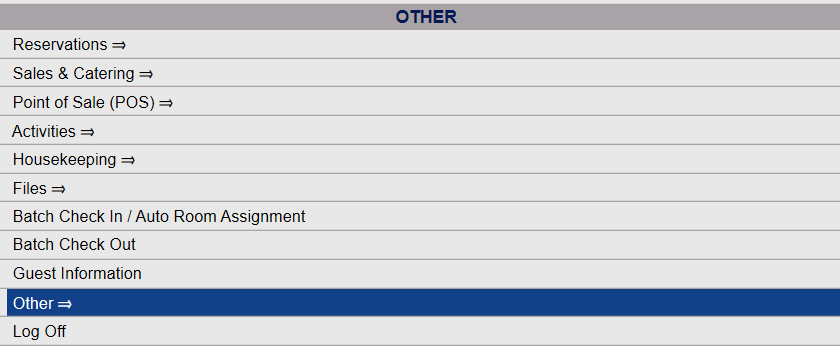
From the Other Section, select Other =>.
 OR
OR 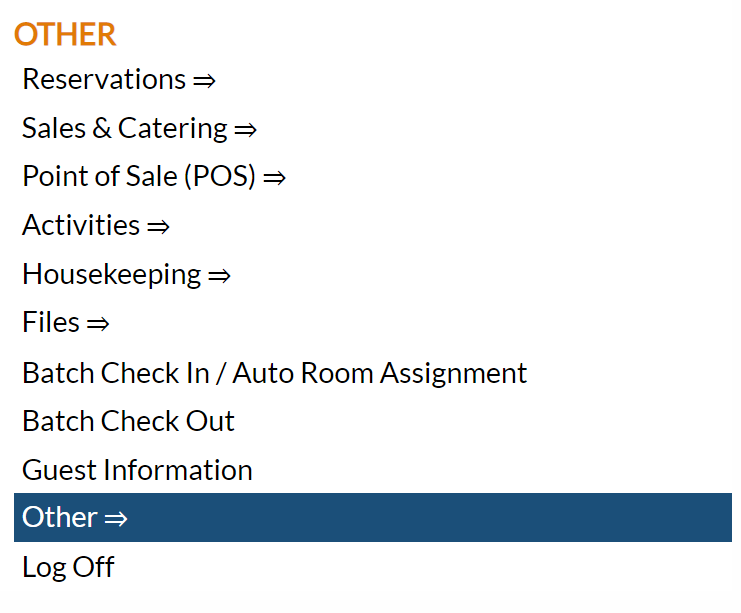
This will display the Other Front Desk Tasks Menu, divided into four sections: Other List 1, Other List 2, Documents and Web.
OR
From the Other List 2 section, select Manager's Screen => to be taken to the Manager's Commands Menu screen.
OR 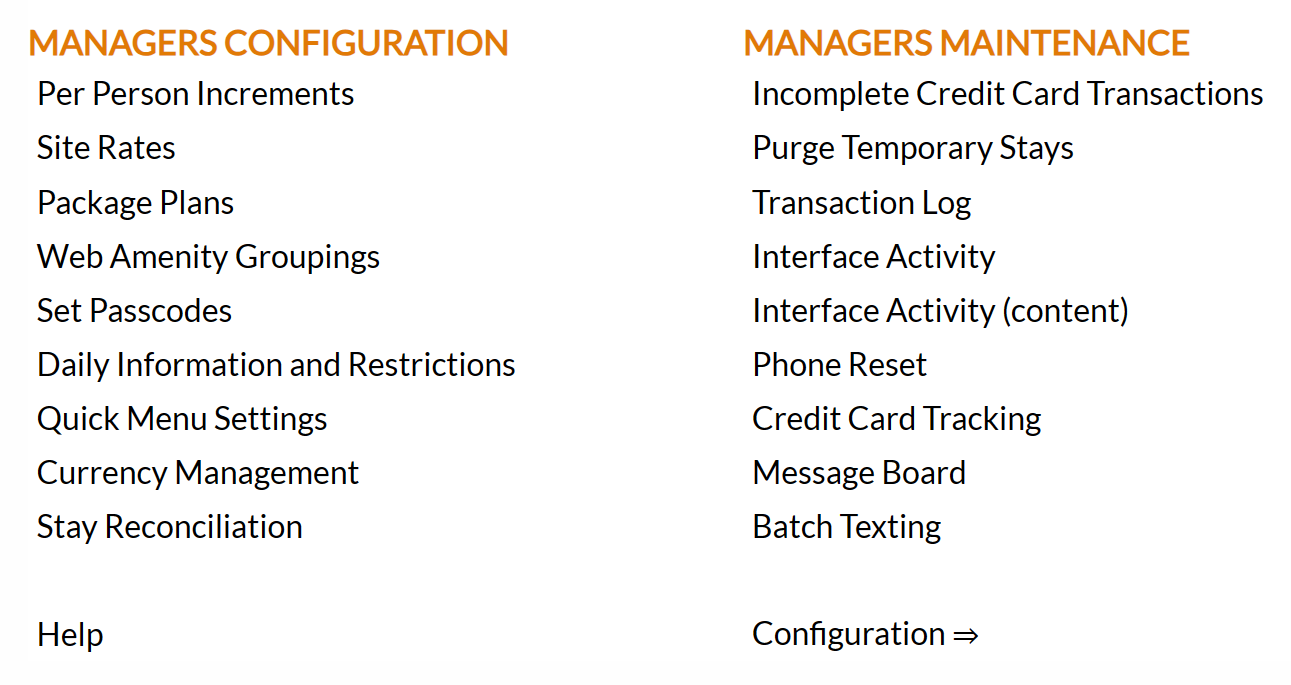
From the Manager's Commands Menu, select Configuration to be taken to the Property and Configuration Menu screen.
 OR
OR 
Alternately, you may also be able to select Configuration directly from the Quick Menu, if the menu has been set up to include the Configuration option. This will also take you to The Property and System Configuration Menu.
OR 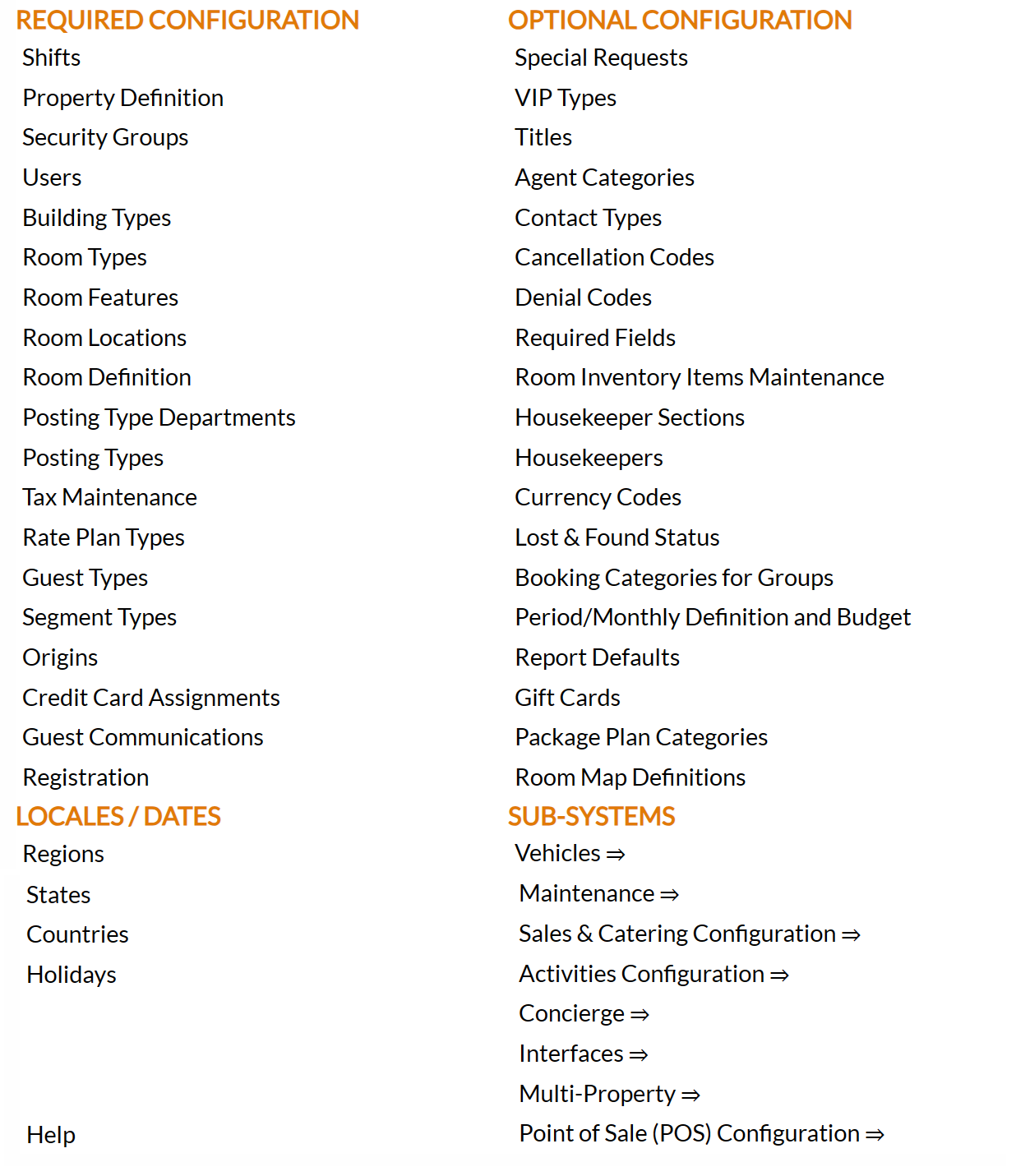
The list of property configuration options are divided into four sections, which are Required Configuration, Optional Configuration, Locales/Dates and Sub-Systems.
Select Property Definition from the Required Configuration section.
 OR
OR 
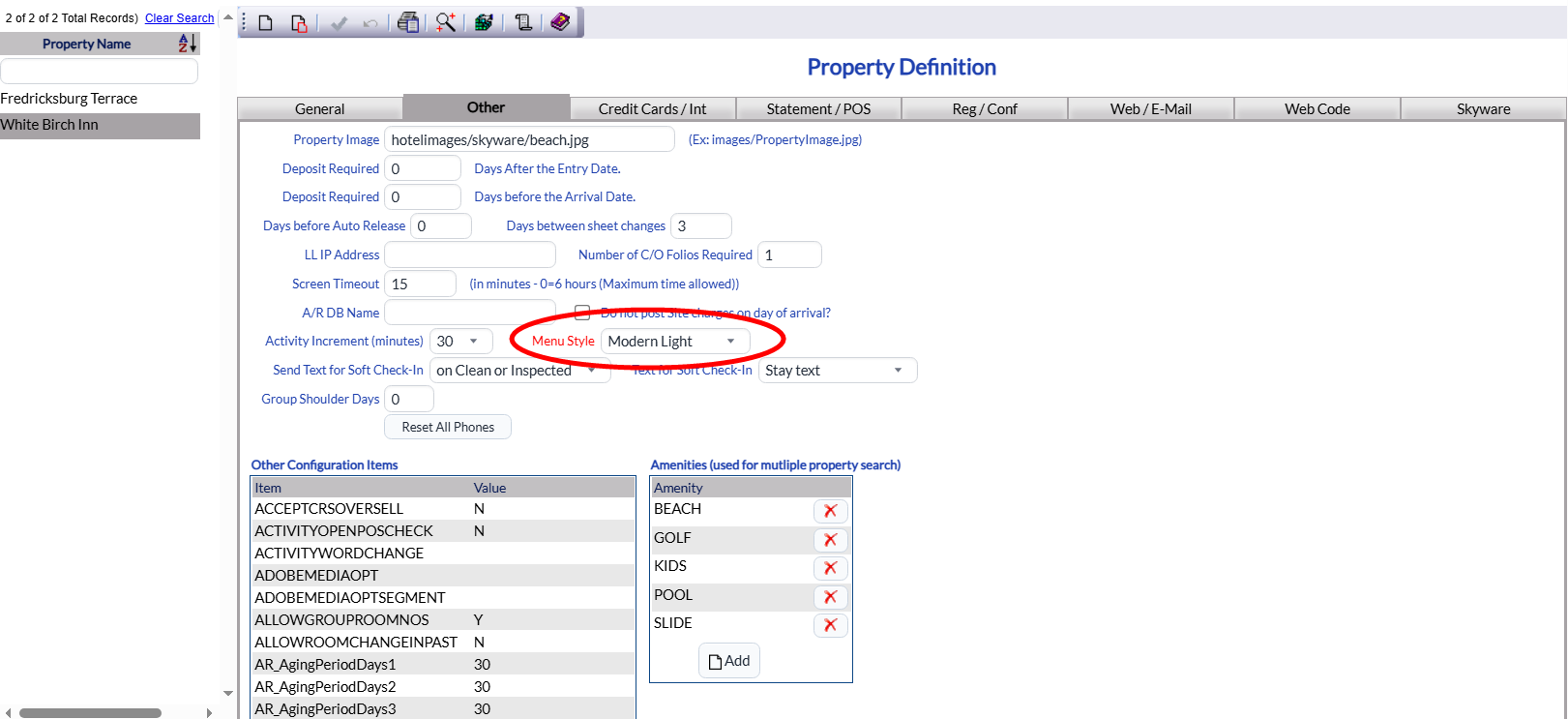
On the Property Definition screen, open the Other tab.
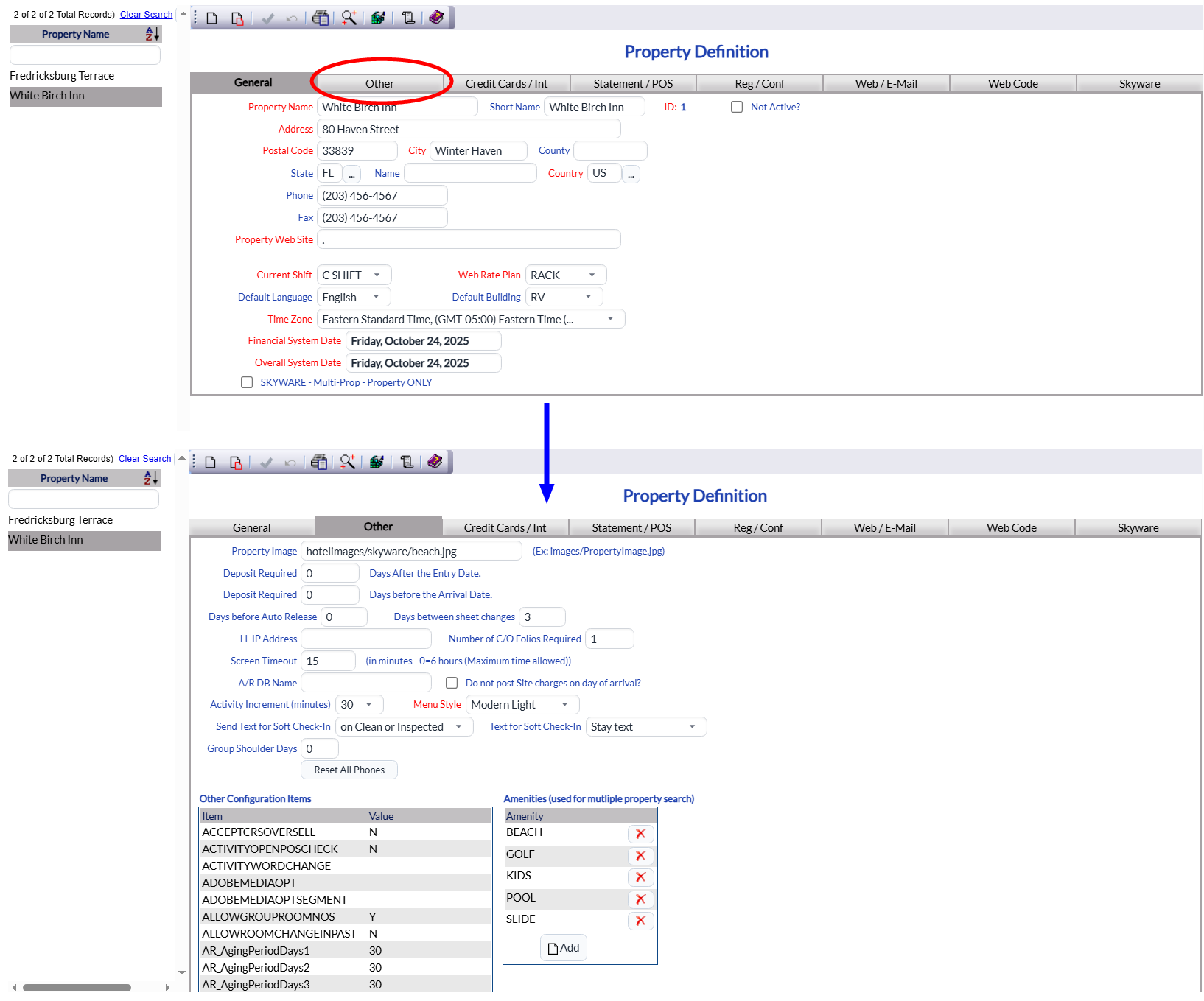
On the Other tab, the Color Theme field is a required field (in red). To change the current selection, click to open the drop down menu and choose the new color theme from the list. Save the selection. The current screen display does not change after saving (unless the screen is refreshed). However, when any new screen in Skyware is opened, it will be displayed in the newly selected color theme for EVERY User (that does not have a different Color Theme selected).
Date Updated March 17, 2026